Filter and segment your audience
Plausible Analytics allows you to easily segment your audience to analyze and understand the different trends. A segment is made up of one or more filters. You can save any segment for quick and convenient access.
Segment your traffic in a simple privacy-first dashboard
How to filter your dashboard
Any metric you click on in your dashboard creates a new filter. Click on any referral source, any of your pages or any location, device or goal and your dashboard will then show only the traffic for the metric you have selected.
You can mix and match filters too. So you can click on a referral source, then click on a country and then a goal to see all the traffic sent by the chosen referral source that is based in the selected country and that has converted on the selected goal.
Your current filters appear as pills at the top of your dashboard. Each pill shows the dimension, operator and selected values. Click the operator or values to edit that part of the filter. Your changes apply immediately. Click the x icon to remove the filter. With several long filters, the row of pills scrolls sideways: swipe on a trackpad, or hold Shift while using the mouse wheel, to reach the others.
You can remove all your filters by hitting the Esc key on your keyboard or by clicking the bin icon next to the filter pills.
Use the "Filter" button for more powerful segmenting and matching
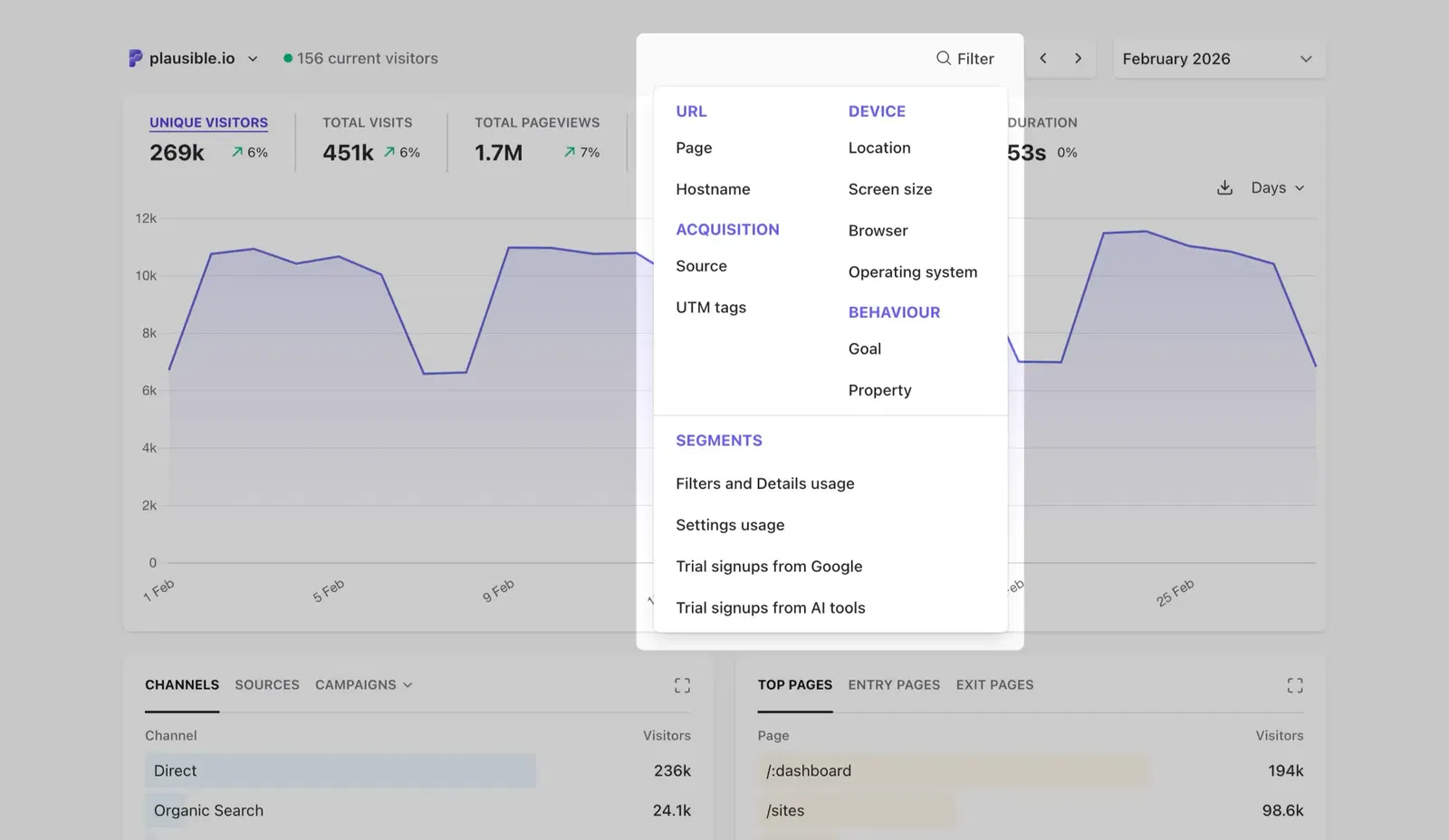
When you’re trying to understand and analyze your traffic, the Filter button gives you more control. Click it and choose a dimension such as Page, Source, Location or Goal. Some dimensions are grouped in submenus. For example, Page contains Page, Entry page and Exit page.
Choosing a dimension adds a filter pill and opens its value list. Search for a value or select multiple values from the list. Changes apply immediately, so there is no separate apply step. Click Done or click outside the list when you are finished.
To change how values are matched, click the operator in the filter pill. Depending on the dimension, you can choose "is", "is not", "contains" or "does not contain".
Filter by multiple sources, countries, pages and more
You can filter your stats by multiple sources, countries, pages and more, all at once. This is useful if you want to group specific geographical regions, separate organic search traffic from other sources or segment your audience to your needs.
Search for any metric
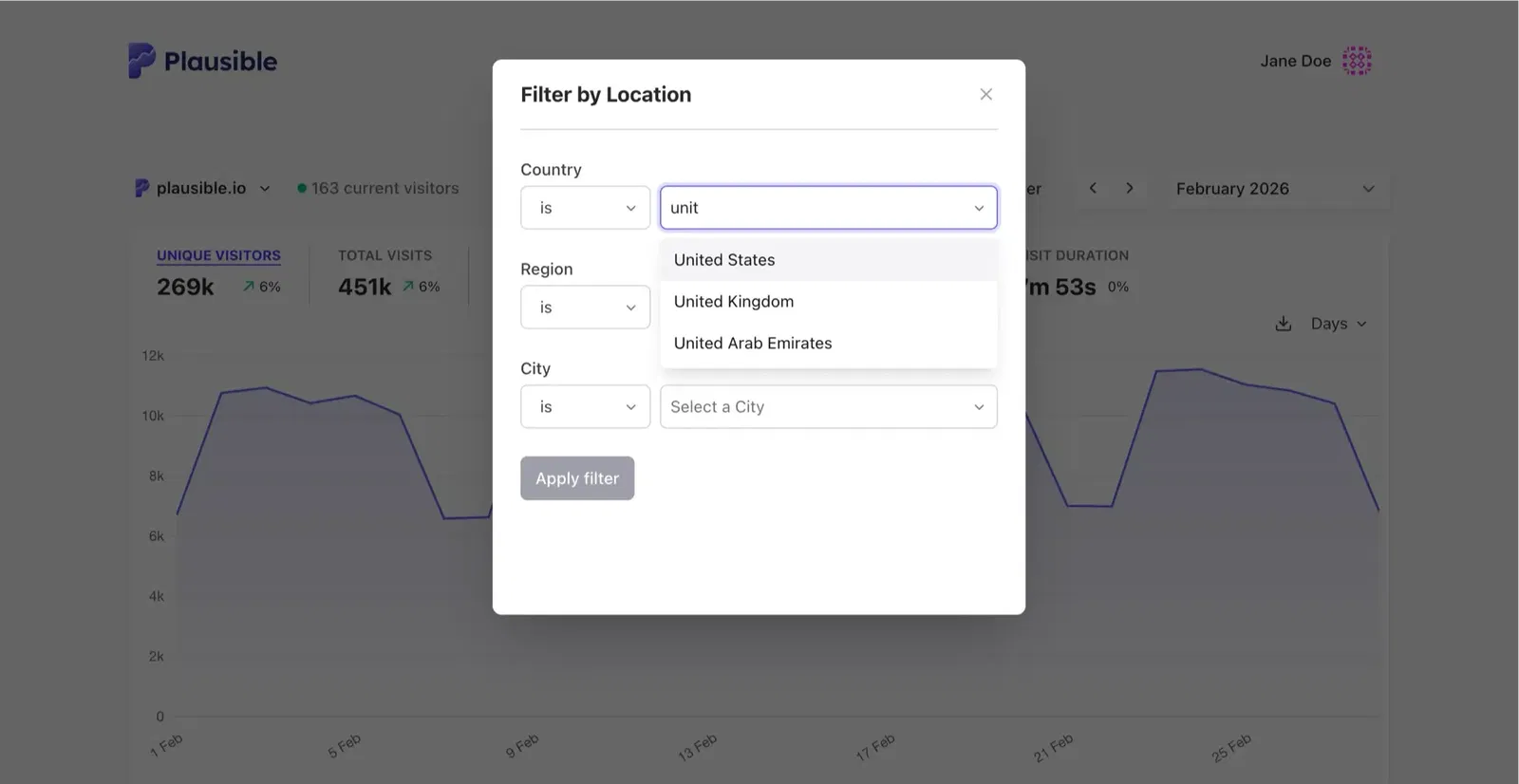
After choosing a filter dimension, type in its search field to find a particular country, referral source or page on your site. Select the matching values you want to include, then click Done. You can select multiple values without scrolling through the full list.
Exclude specific segments of traffic
You can exclude specific segments of traffic and only display the traffic that isn't part of the excluded segment. You can, for instance, exclude traffic from the United States so your dashboard only shows the visitors that aren't based in the USA.
Click on the Filter button, open Location and select Country. Then select or type the name of the countries you want to exclude. Click the operator in the filter pill and choose "is not" or "does not contain." You can do the same for referral sources or any of the other dimensions.
Group relevant pages, marketing campaigns and more
Want to group all your blog posts and analyze the traffic to the blog separately from the rest of your site? Or exclude traffic that has visited a specific section of your site such as your logged in pages or your order confirmation page? Or do you want to group all the traffic from a specific set of marketing campaigns?
You can group pages, sources, campaigns and more by using the Filter button. For instance, the Page menu within the filter button includes options "contains" and "does not contain". Put any specific keyword to group all of your pages that contain that keyword.
Would you like your grouped pages to be permanently displayed in your dashboard? You can do so by using pageview goals.
Filter by subdomain or hostname
Want to filter by hostname so you can segment your stats to a specific subdomain only? You can do so by using the Filter button and choosing the Hostname entry within the menu.
You can choose to segment your traffic by any one specific hostname from the list, you can exclude any one specific hostname or even segment by hostnames that contain any specific word.
Learn more on how Plausible handles cross-subdomain tracking here.
How to save a segment
Click on any metric in the dashboard or use the Filter button to filter your audience to a desired segment. After completing your segment, click the Save as segment (star icon) option next to the filter pills.
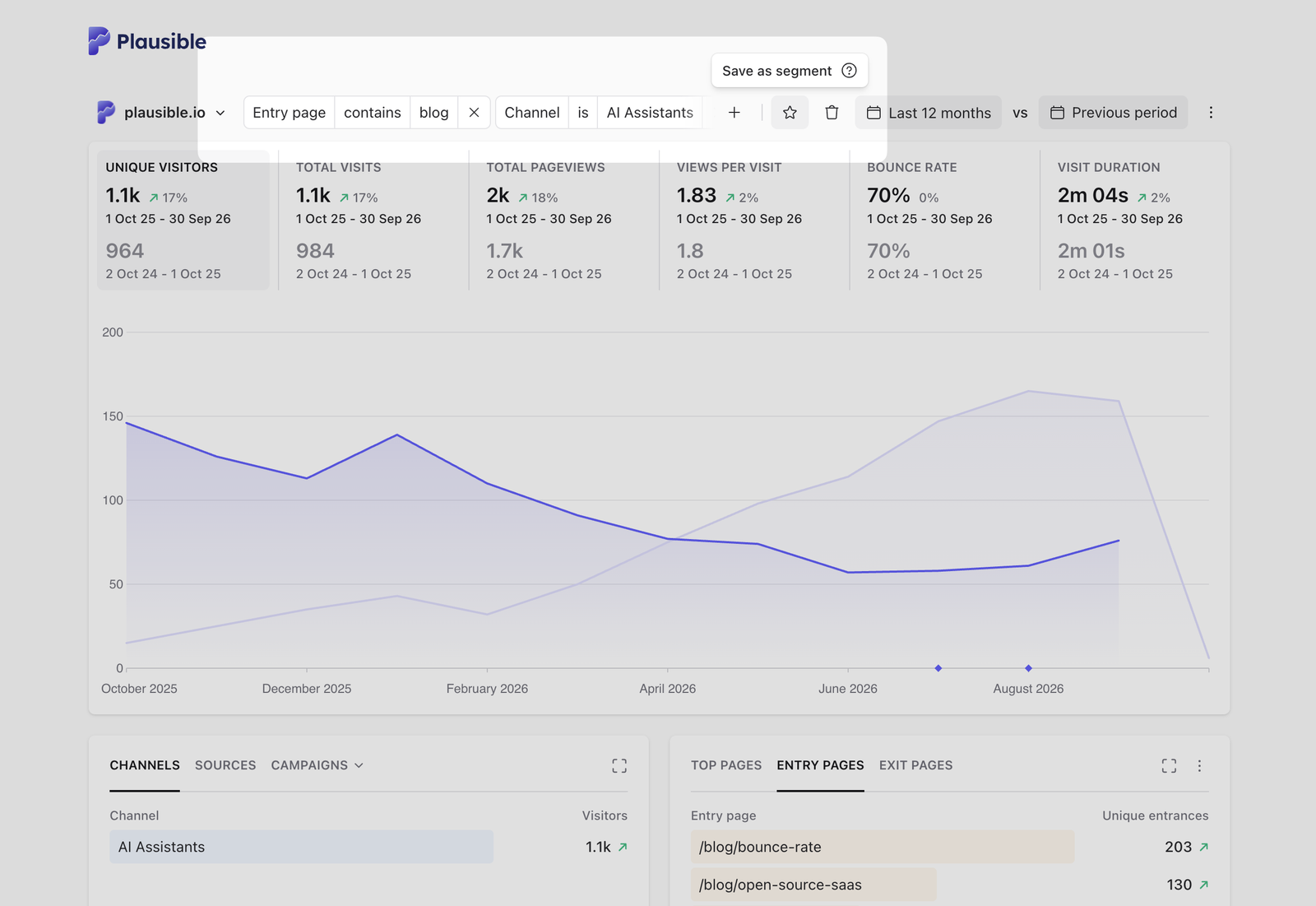
Segments can be saved either as "personal segments" (these are visible only to you) or as "site segments" (these are visible to all the team members that have access to your dashboard).
Choose the type of segment you want to create, give it a recognizable name and click on the Save button.
How to open a previously saved segment
Click the Filter button and open Segment to view your saved segments. Click on a segment to open it in your dashboard.
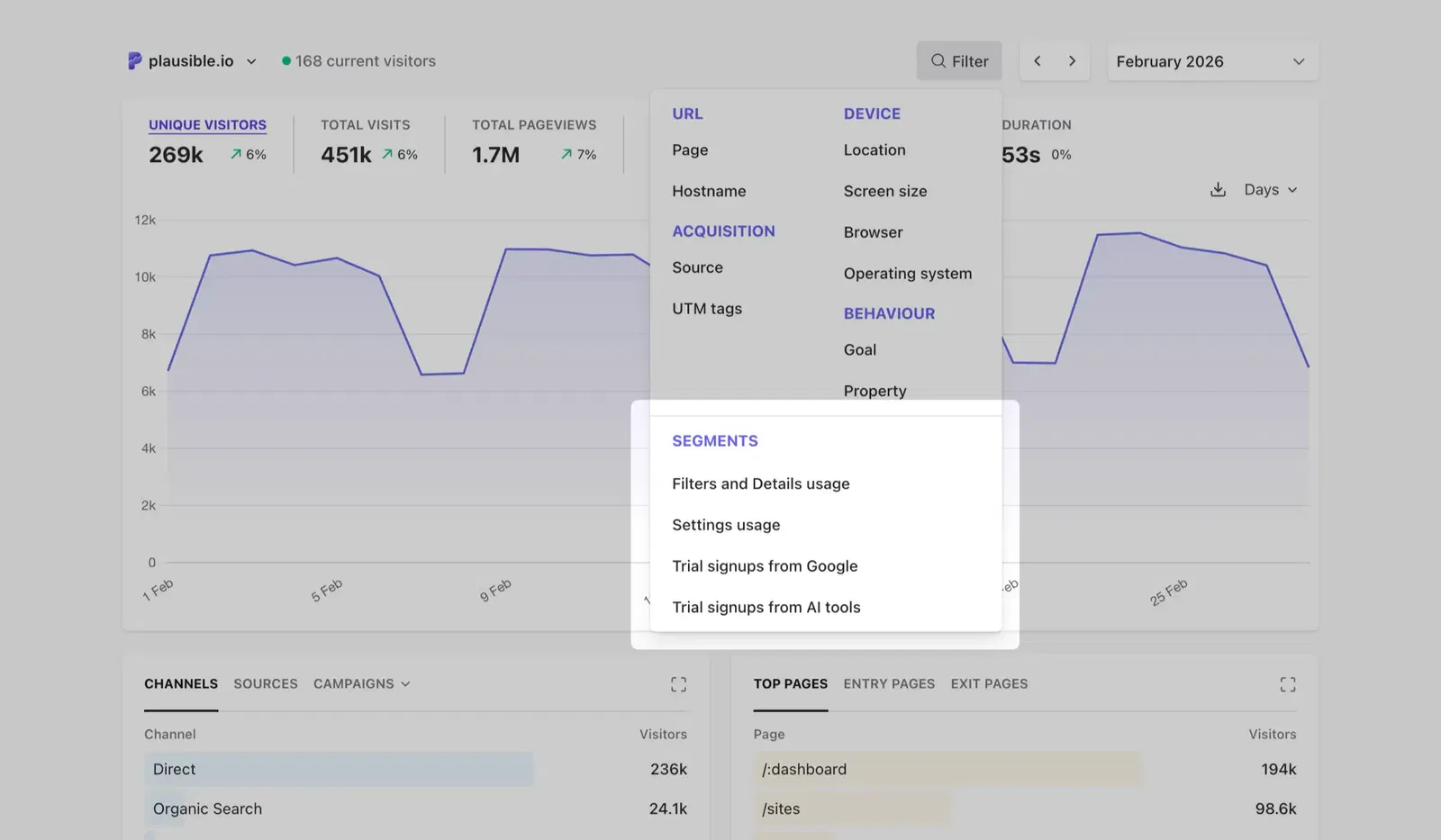
The Segment entry is only visible after you save your first segment.
How to edit or delete a previously saved segment
Open a previously saved segment and click its pill at the top of your Plausible dashboard. From this menu, you can view its filters, switch to another segment, edit, duplicate or delete the segment.
Select Edit segment to add, remove or change filters. Click Save to update the segment or Cancel to return to the saved version.
P.S. We've written an in-depth guide on effective use of audience segmentation, you can read it here.
What's next?
- Set up goals so you can filter your dashboard by conversion and see which sources and campaigns drive the most signups or purchases
- Compare two time periods alongside your segment filters to understand how a specific audience's behavior has changed over time
- Export filtered stats to CSV to share a specific segment's data outside the dashboard
- Create a shared link pre-filtered to a specific segment for stakeholders who only need to see part of your data